Organiser Guide › Running an event › Getting into the Back Office
Organiser
Getting into the Back Office
The Back Office is a separate console for running your festival — the place where you set everything up. Don't worry, it's a calm, straight line. You'll sign in, choose a series, set up the series, add an edition, run a short setup wizard, and then build the schedule. This chapter covers the first two steps: getting in, and picking what you want to work on.
What the Back Office is
Think of the Back Office as the "behind the scenes" version of Yuimaru. The main app is where people find festivals and sign up. The Back Office is where you, the organiser, build those festivals. It looks a little different — its buttons are a warm amber colour instead of pink — but signing in works exactly the same way.
A series is your festival's brand — the thing that runs again and again, like "Amsterdam Acro Festival". An edition is one single run of it — one year or one season, like "Summer 2026". You set up the series once, then add a fresh edition each time you run it.
Signing in
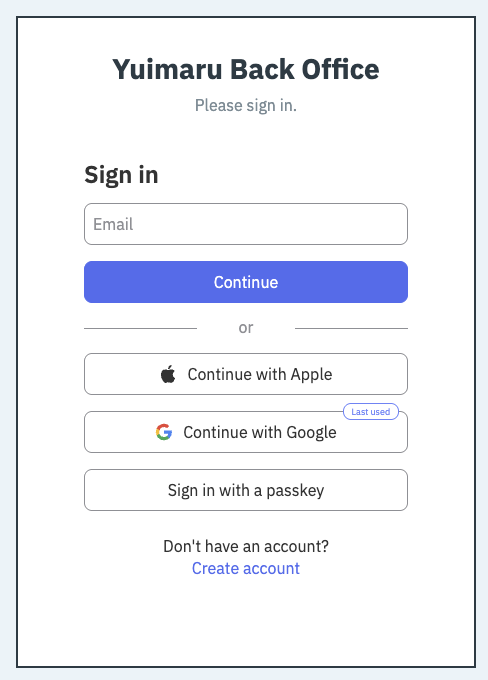
When you open the Back Office you'll land on a plain screen headed "Yuimaru Back Office" with the words "Please sign in." It's the very same sign-in as the main app (see chapter 1 for the full walkthrough): type your email and press Continue, or use Continue with Google or a passkey. First time? Use the Create account link.
If you open a link to a series that someone else runs, you'll briefly see "You don't have access to this" with the line "Taking you back…", and Yuimaru gently returns you to your own series list. This is completely harmless — it just means that particular series isn't one of yours. Pick one of your own from the list.
Choosing a series
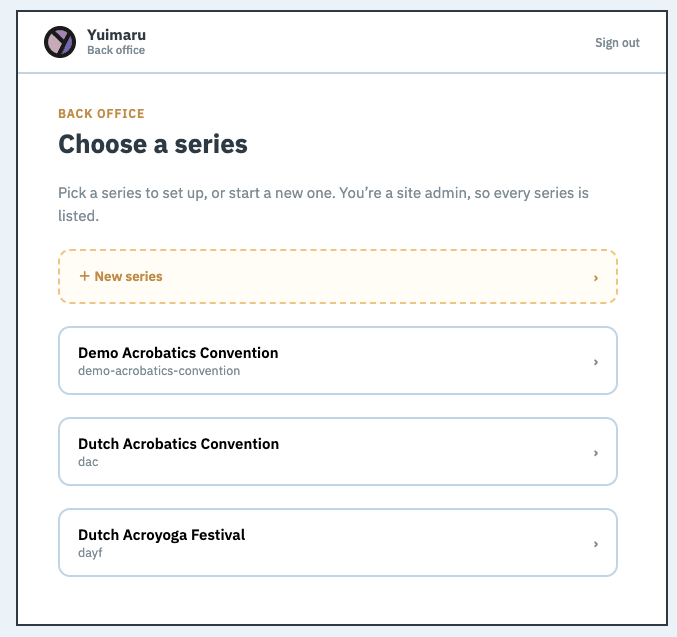
Once you're in, you'll see a screen headed "Choose a series" with the line "Pick a series to set up, or start a new one." Each festival you help run appears as a card. Click a card to open it, or make a brand-new one.
-
Look at your series cards
Every series you're part of shows up as a card on this screen. If one is already there, click it to jump straight into setting it up.
-
To start fresh, click the "+ New series" card
There's a card with a plus sign that says + New series. Click it and a small box opens.
-
Type a name
Type your festival's name into the "New series name" box. It shows a faint example — e.g. Amsterdam Acro Festival 2026 — to give you the idea. Don't overthink it; you can change it later.
Naming a new seriese.g. Amsterdam Acro Festival 2026 -
Click "Create series"
Press Create series to make it, or Cancel if you change your mind. The person who creates a series becomes its organiser — that's you, and it means you're in charge of it.
Create it, or back out Create series Cancel
That's it — you're now looking at your series, ready to set it up. The next chapter walks through those settings one by one.
Common questions
What's the difference between a series and an edition?
A series is your festival's lasting brand — it stays the same year after year. An edition is one single run of it, like "Summer 2026". You build the series once, then add a new edition each time you hold the event.
I don't see my festival on the "Choose a series" screen — why?
Two common reasons. First, make sure you signed in with the same email you were invited or set up with. Second, you'll only see series you actually help run — if someone else created it and hasn't added you, it won't appear. Ask them to invite you.
What if I click the wrong thing?
Nothing breaks. Nothing you do here is shown to the public until you choose to publish, and there's a Cancel or a way back on every box. If you open the wrong series, just head back and pick another.
How do I sign in to the Back Office?
Exactly like the main app: type your email and press Continue, use Continue with Google, or use a passkey (fingerprint, face, or screen-lock). If it's your first time, use the Create account link.