Organiser Guide › Running an event › Editions & the setup wizard
Organiser
Editions & the setup wizard
An edition is one run of your series — one year or one season of your festival. To set one up, Yuimaru gives you a friendly wizard: a guide that walks you through everything in seven small steps, one screen at a time. You can jump around and come back; nothing goes public until you're ready.
Adding an edition
From your series, you'll reach a screen headed "Choose an edition" with the line "Pick an edition to set up, or add a new one (e.g. a year or season)." Your existing editions appear as cards. To make a new one:
-
Click "+ New edition"
Find the card with a plus sign that says + New edition and click it.
-
Give it a name
Type into the "New edition name" box. It shows a faint example — e.g. Summer 2026 — to guide you. A season or a year makes a good name.
Naming a new editione.g. Summer 2026 -
Click "Add edition"
Press Add edition and your new edition is created, ready for the wizard.
Your plan includes a number of editions to begin with. Each extra edition beyond that costs €5, so you may be asked to pay that small amount before the new one is created. There are no surprises — you'll always see it before anything is charged.
Each edition card shows its status at a glance: Published — live means it's out in the world, and Draft means it's still private and only you can see it.
The setup wizard — seven steps
The wizard has a step list down the side, grouped into "Structure" (the bones of your event) and "Operations" (how it runs). Along the bottom is a footer with ‹ Previous, a "Step N of 7" label so you always know where you are, and Continue › to move on (on the last step this reads Finish setup).
You can jump between steps in any order and come back later — your work is saved as you go. And nothing here is visible to the public until you choose to publish, so feel free to explore.
-
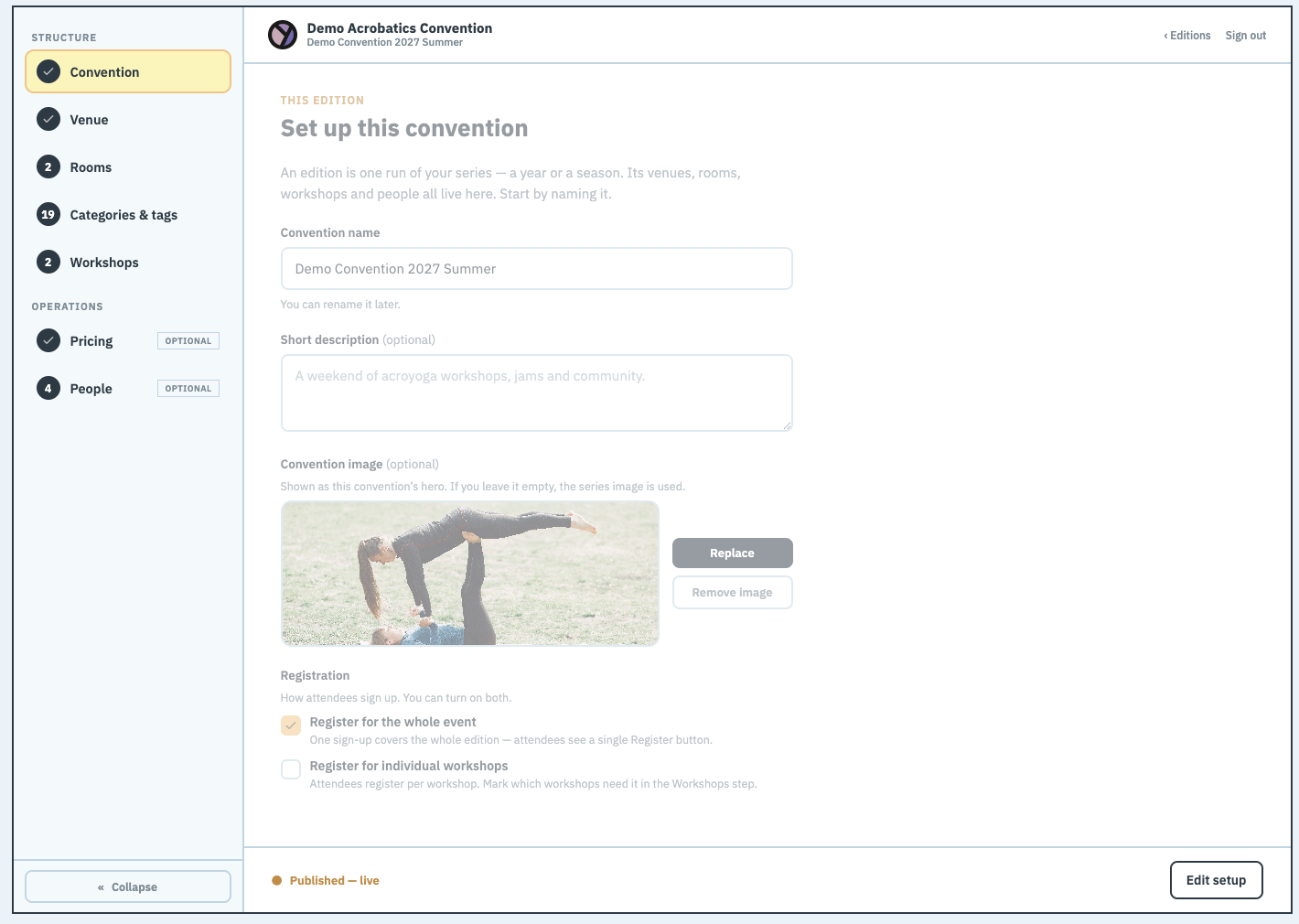
This edition — "Set up this edition"
Give this run its own name, a short description, and an image. If you skip the image, it quietly falls back to your series image, so it never looks empty.
Underneath, a Registration setting decides how people sign up — and you can turn on both:
- Register for the whole event — one sign-up covers the whole edition; attendees see a single Register button.
- Register for individual workshops — attendees register per workshop. You then mark which workshops need it over in the Workshops step.
-
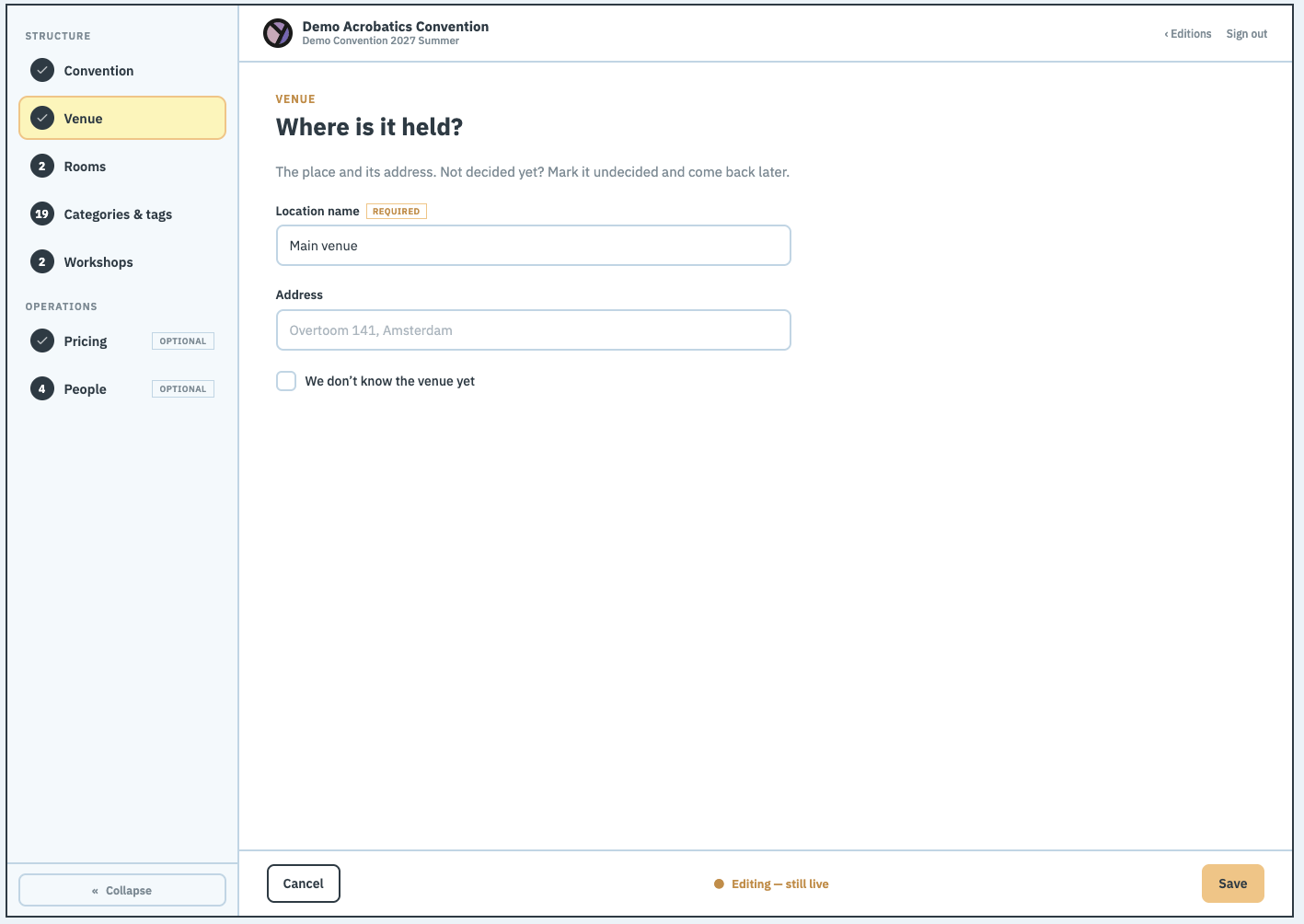
Venue — "Where is it held?"
Enter the Location name and Address. Don't have a venue yet? Just tick "We don't know the venue yet" and move on — you can fill it in later.
The Venue step — the place and its address. -
Rooms — "What rooms are involved?"
Click + Add room for each space, giving it a Room name (and, if you like, its Capacity, Equipment, and Dimensions). Inside each room you can click + Add area to add an Area name and Capacity.
What's an area?An area is a part of a room — say one corner of a big hall. Workshops attach to areas, not whole rooms, so two things can run in one room at once. Every room automatically gets one "whole room" area, so if you don't split a room up, there's nothing you need to do.
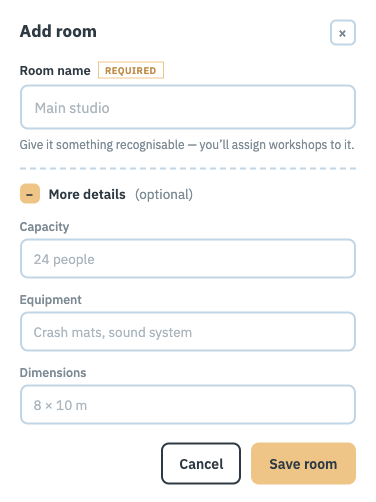
Adding a room — the name is all you need; capacity, equipment and dimensions are optional. -
Categories, tags & requirements — "How will people find their way around?"
Three ways to describe a workshop, each doing a different job. They're laid out as three checklists — tick the ones that fit, or use the + Add row on any list to write your own (and × to drop one):
- Categories — the kind of session. Each workshop is exactly one (say a Workshop, a Jam, or a Performance).
- Tags — the themes a session is about. A workshop can carry several, and they become the filters people browse by.
- Requirements — what someone needs before they can join, like "Signed waiver required", "Minimum skill level", or "Bring a partner".
These lists live on the series, so they're shared across every edition — set them up once and reuse them each run.
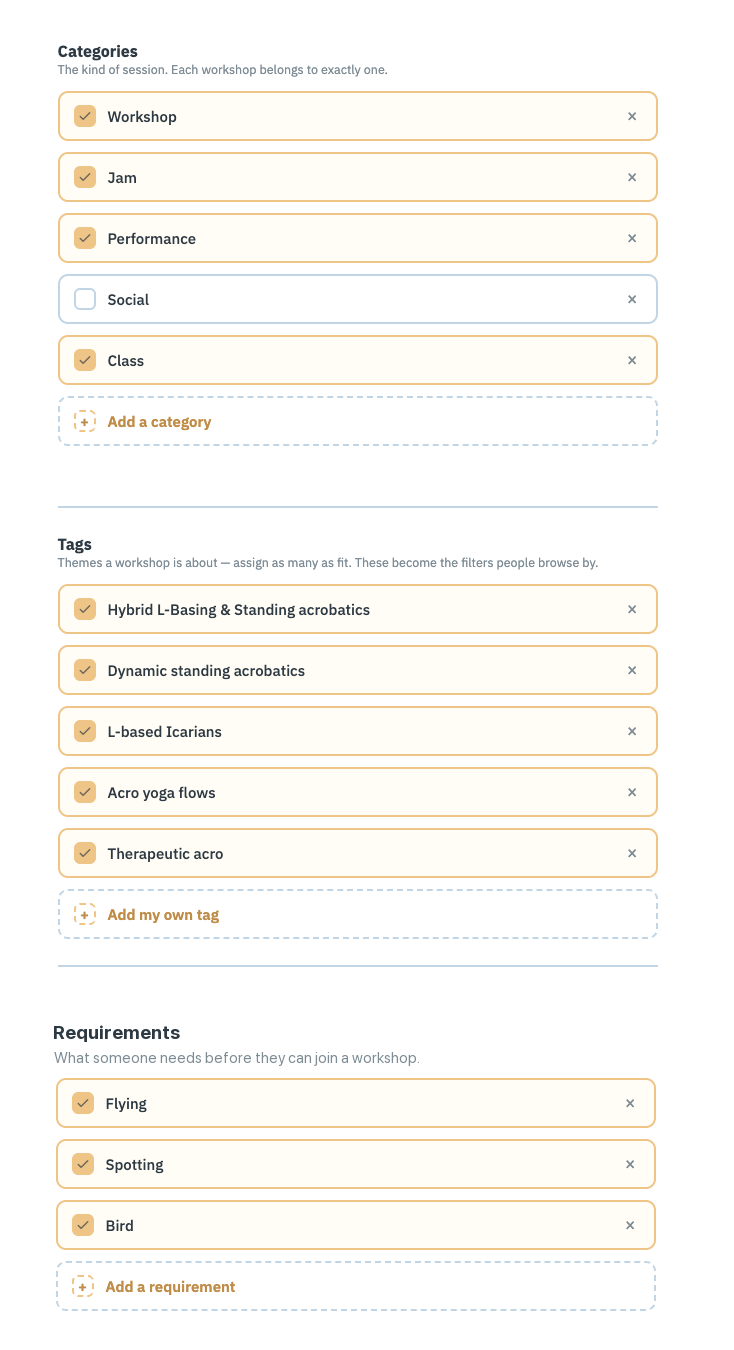
Three checklists side by side — Categories, Tags and Requirements. -
Workshops — "Add your workshops"
The full schedule lives right here in the step — a List / Calendar view of every session, with + Add workshop to add one. You build and arrange the whole timetable without leaving the wizard — that's the next chapter.
-
Pricing — "How will people pay?"
Pricing comes from the attendee registration form you set up on the series. Here you choose whether this edition simply inherits that pricing, or has its own. Use Copy & edit for this edition to start from the series pricing and tweak it just for this run, or Edit pricing to adjust it.
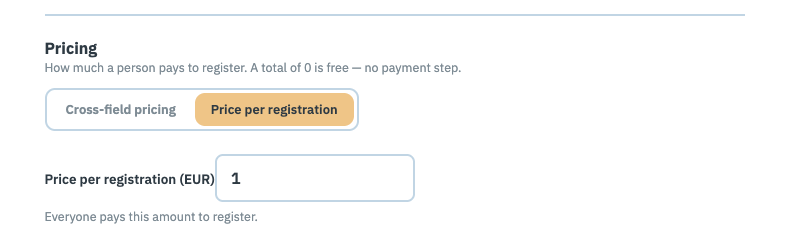
The Pricing step — a flat price per registration, or per-answer pricing carried over from the form. -
People — "Who's involved?"
Invite the people who make it happen — Organizers, Hosts / Teachers, Volunteers, and Attendees — with + Invite, by email. Until someone signs in, an "Invited" tag shows next to their name. There's also an "Invite by email" box with a Send invite button.
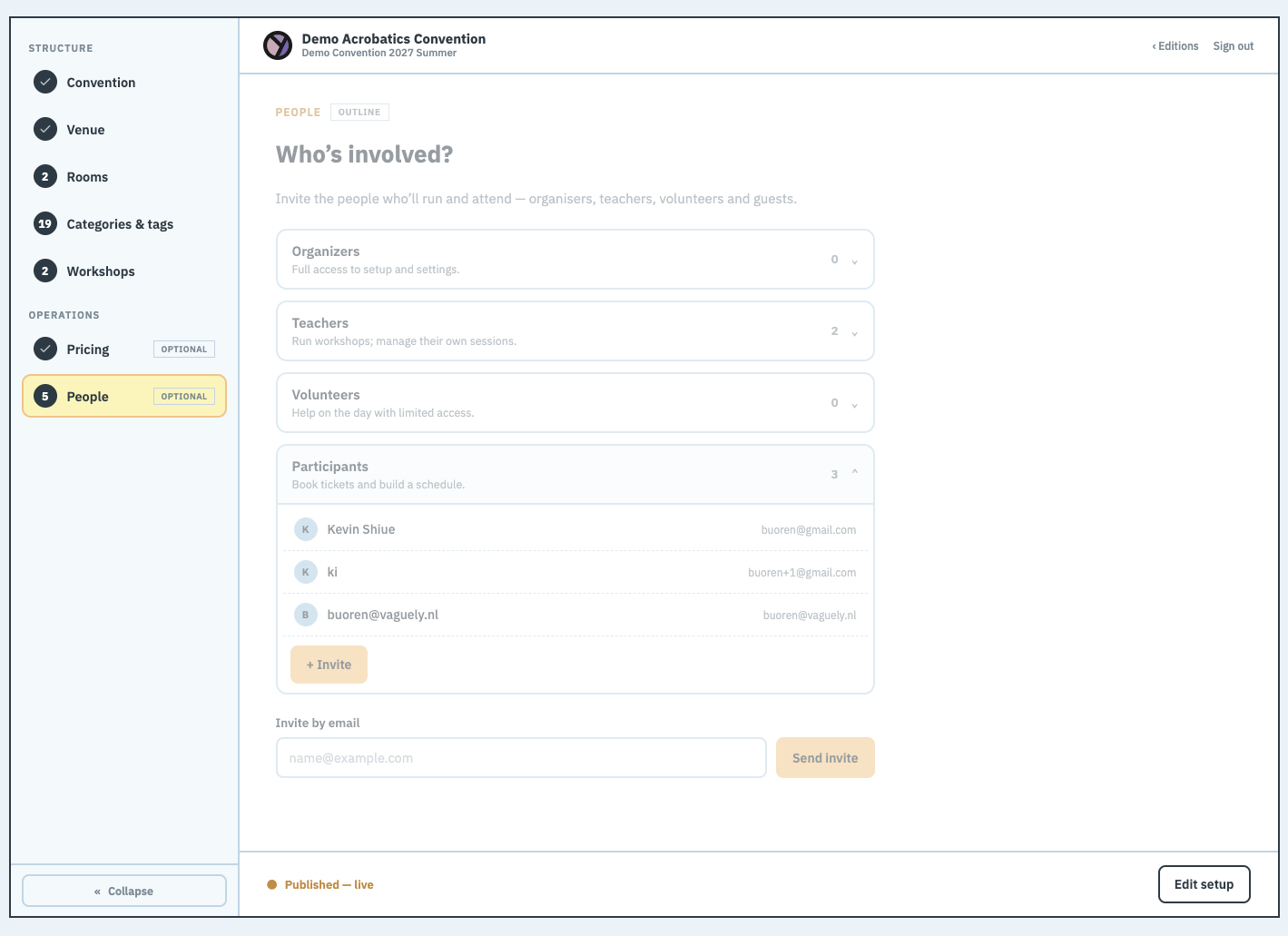
The People step — organizers, teachers, volunteers and attendees, all invited by email.
Finishing
When you reach the end, a summary screen headed "This edition is ready to publish" shows you the shape of what you've built — counts of Rooms, Categories & tags, Workshops, People, and the Venue — with a Publish edition › button.
While your edition is a Draft, nobody but you can see it. Clicking Publish makes it live so people can find it and sign up. Changed your mind? You can unpublish to take it private again and keep editing. Nothing is ever set in stone.
Putting your programme on your own website
Most festivals already have a website of their own. Rather than keeping a second copy of the timetable there by hand, you can embed Yuimaru's programme into your own page — it's the same calendar attendees see in the app, and it updates itself whenever you change the schedule.
The switch is called Allow schedule embedding, and it sits under Sharing on the finish screen, with the note "Put this edition's programme on your own website." It's a deliberate opt-in and quite separate from publishing:
- Publishing puts the edition on the public Yuimaru site.
- Embedding decides whether somebody else's page may show the programme in a frame.
Turn it on and two ready-to-copy boxes appear, each with a Copy button:
- Embed code — a snippet of HTML to paste into your own page. Hand this to whoever looks after your website; it's the only thing they need.
- Direct link — the plain web address of the programme, if you'd rather link to it than frame it.
If the edition is still a draft, you'll see a line saying the programme goes live once you publish — but the link is ready to paste now. So your web person can put it in place in advance, and it fills itself in the moment you publish.
The switch reads "Lets any site show this edition's calendar in a frame, with a link back to the app. Turn it off and every embed of it stops working." That's literal — untick it and the programme disappears from every page it's been pasted into. Because of that, the off switch lives only here on the edition itself, so it can't be flipped by accident from a list.
On the edition list you'll also find a quick Allow embedding button, and once it's on, a Copy embed link button with the note "Embeddable — manage in the edition" beside it. That's the shortcut for grabbing the link when someone asks for it; the full panel is the one above.
The embedded programme is just the calendar: no menus, no sign-in, no footer, and nothing to save or register with. Visitors can click a workshop to read its details, and a View in the app ↗ link takes them to Yuimaru in a new tab if they want to save sessions or sign up. It uses the same styling as the app, so it should sit comfortably on your page.
Common questions
How do I put my schedule on my own website?
Tick Allow schedule embedding under Sharing on the edition's finish screen, then copy the Embed code and paste it into your own page — or use the Direct link if you'd rather just link to it. It shows the same calendar as the app and updates automatically when you change the schedule. You can set it up while the edition is still a draft; it fills in when you publish.
If I turn embedding off, what happens to the schedule on my site?
It stops working — everywhere it's been pasted, immediately. The programme is only served to other sites while the switch is on. That's why it can only be switched off from the edition itself, not from the edition list.
Can people register from the embedded schedule?
Not from inside the frame — it's a read-only view of the programme with no sign-in. Each workshop opens its details, and a View in the app ↗ link sends visitors to Yuimaru in a new tab, where they can save workshops and register as normal.
What's an edition versus the series?
The series is your festival's lasting brand and its shared settings. An edition is one particular run of it — one year or season, with its own dates, venue, rooms, and schedule. You add a new edition each time you hold the event.
Do extra editions cost money?
Your plan includes some editions to start with. Beyond that, each extra edition costs €5, and you'll be asked to pay it before the edition is created. You'll always see the cost first — nothing is charged by surprise.
What exactly is an "area"?
An area is a part of a room — like one corner of a large hall. Workshops attach to areas, which lets more than one thing run in the same room. Every room automatically gets a single "whole room" area, so if you don't split a room, you don't need to do anything.
Can I finish the wizard later?
Yes. Your work is saved as you go, and you can jump between steps or leave and come back any time. There's no deadline, and none of it is public while you're still setting up.
What does publishing do — and can I undo it?
Publishing makes your edition live so people can find it and sign up. Before that it's a Draft that only you can see. If you need to make changes, you can unpublish to take it private again, edit, and republish. It's fully reversible.