Organiser Guide › Running an event › Building the workshop schedule
Organiser
Building the workshop schedule
This is where you add every session in your event and arrange it on a calendar. Think of it as your festival's timetable — the list of who is teaching what, in which room, and at what time.
Getting to the schedule
When you set up an edition, the setup wizard has a Workshops step (called Events in some setups). The schedule lives right inside that step — there's no separate screen to open — so you build the whole timetable without leaving the wizard.
A banner across the top shows your festival window — the range of dates and the daily hours for the event — and next to it a count of what's scheduled so far (for example "206 workshops · 1 placeholder"). This is also where you set those dates: use Set dates (or Edit dates) to choose the start and end days, then Save dates. The calendar can't lay itself out until the dates are set, so this is usually your first move. To add a session, use the + Add workshop button in the top-right corner.

 Workshops
+ Add workshop
Workshops
+ Add workshop
Three ways to view your sessions
A little List / Calendar / Scheduler toggle lets you switch between three ways of looking at the same edition. The first two are just different pictures of what you've built — pick whichever feels easier, nothing changes about your event. The third is where Yuimaru can draft a timetable for you, and it has a chapter of its own: chapter 5.
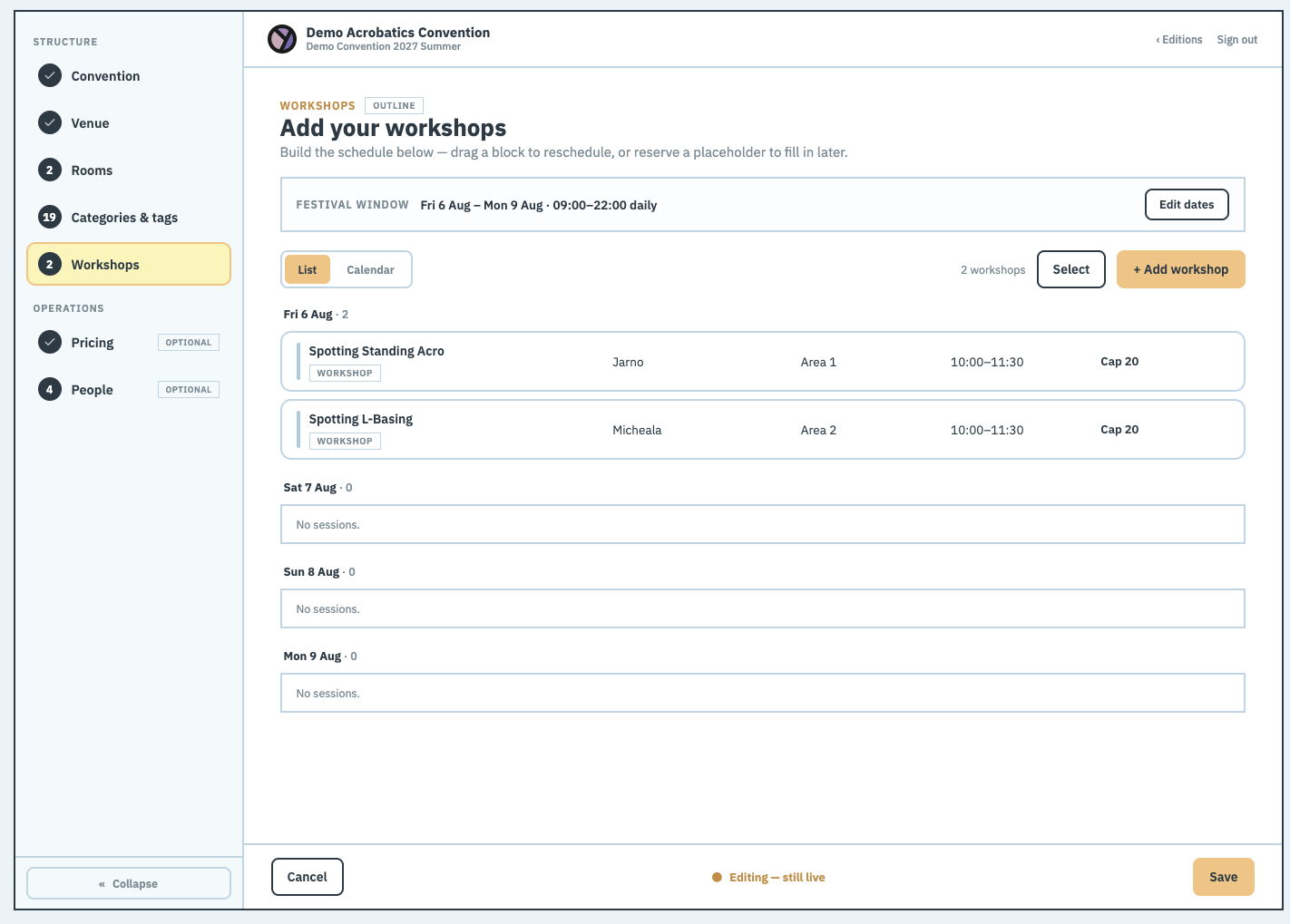
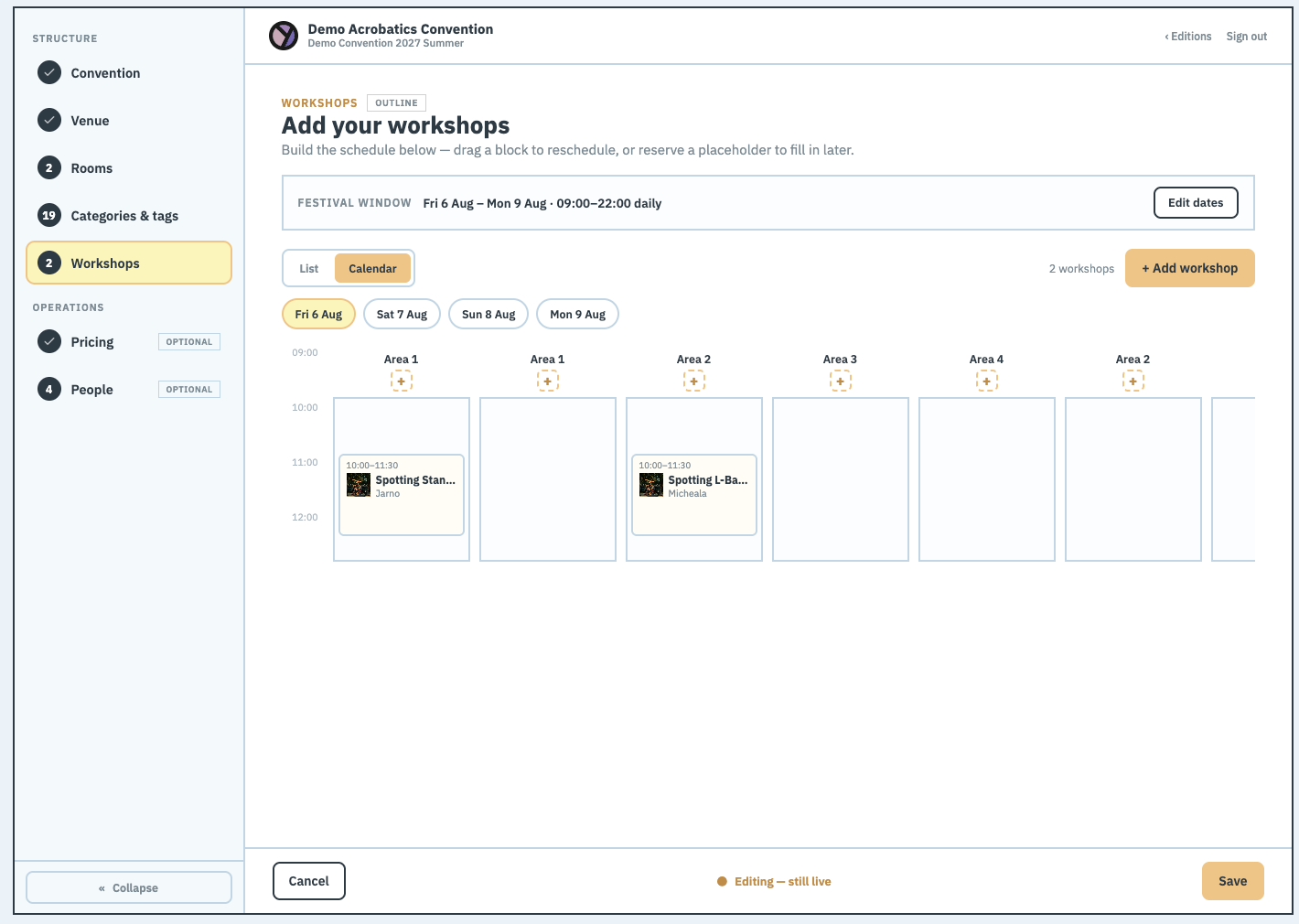
List view
Your sessions are grouped by day, with an extra "Unscheduled" group for anything that doesn't have a time yet. Each row shows the title, the teacher, the room or area, the time, and the capacity — written as "Cap N", where N is how many people can join. Click any row to open it and make changes.
Calendar view
Here the columns are your rooms and areas, and the rows going down are the time of day — a bit like a weekly planner. To add a session in a particular room, press the "+" at the top of that column.
If your festival runs over several days, a row of day buttons (Fri, Sat, Sun…) sits above the calendar — tap one to switch days. The calendar opens on the first day that actually has sessions, so you're never staring at an empty grid. When two sessions overlap in the same room, they sit side by side so you can see both at once.
The nice part: you can drag a session block to move it to a new time. It gently snaps to 15-minute steps as you drag, and it always stays inside your festival hours, so you can't accidentally park a workshop at 3 in the morning. If you drop a session on top of another one, the two simply swap places — you'll see a small "⇄ Swap" hint before you let go.
Moving a session by dragging never deletes anything. If you don't like where it landed, just drag it back — there's nothing to break, and nothing is sent to anyone until your event is live.
Repeating a day's shape
Most festivals run the same rhythm every day — 09:00, 11:00, 14:00, 16:00, in every room. Rather than draw that four times, lay out one day and press Repeat layout… (it appears on the Calendar view). It stamps the day you're looking at onto the other days, so the whole weekend has its shape in one go.
This is worth doing early for another reason: it's what gives the auto-scheduler something to work with. It only ever uses times you've drawn, so one well-laid-out day repeated across the weekend is all it needs.
Conflicts, and the Rules button
Yuimaru quietly checks your timetable as you build it and flags problems — a teacher in two places at once, a session too big for its room. You'll see a small badge on the offending session and a banner above the calendar.
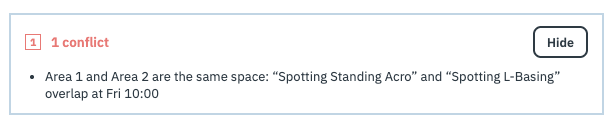
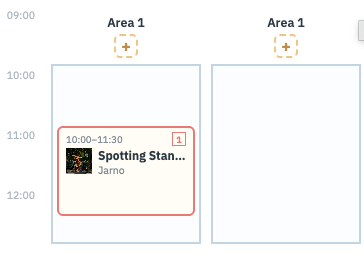
When there's more than one, they stack up in the same banner behind a single count. By far the commonest kind is a teacher booked into two places at once — easy to do when you're moving sessions around, and the sort of thing nobody notices until the person is standing in the wrong room.

Neither the badge nor the banner stops you doing anything. They're telling you something is worth a look, not refusing the arrangement.
The Rules button next to the view toggle is where you decide what counts as a problem at your festival, and how strict each one is. It's covered properly in chapter 5 — but it's worth a look even if you never let Yuimaru draft anything, because those rules are what put the badges on this screen.
That panel also holds Fixed time slots: tick it once your timetable is settled and no new sessions can be added to the edition by anyone. Existing ones can still be moved or removed. A small Fixed time slots tag then shows up here, and the + Add workshop button goes away.
A workshop, or a placeholder?
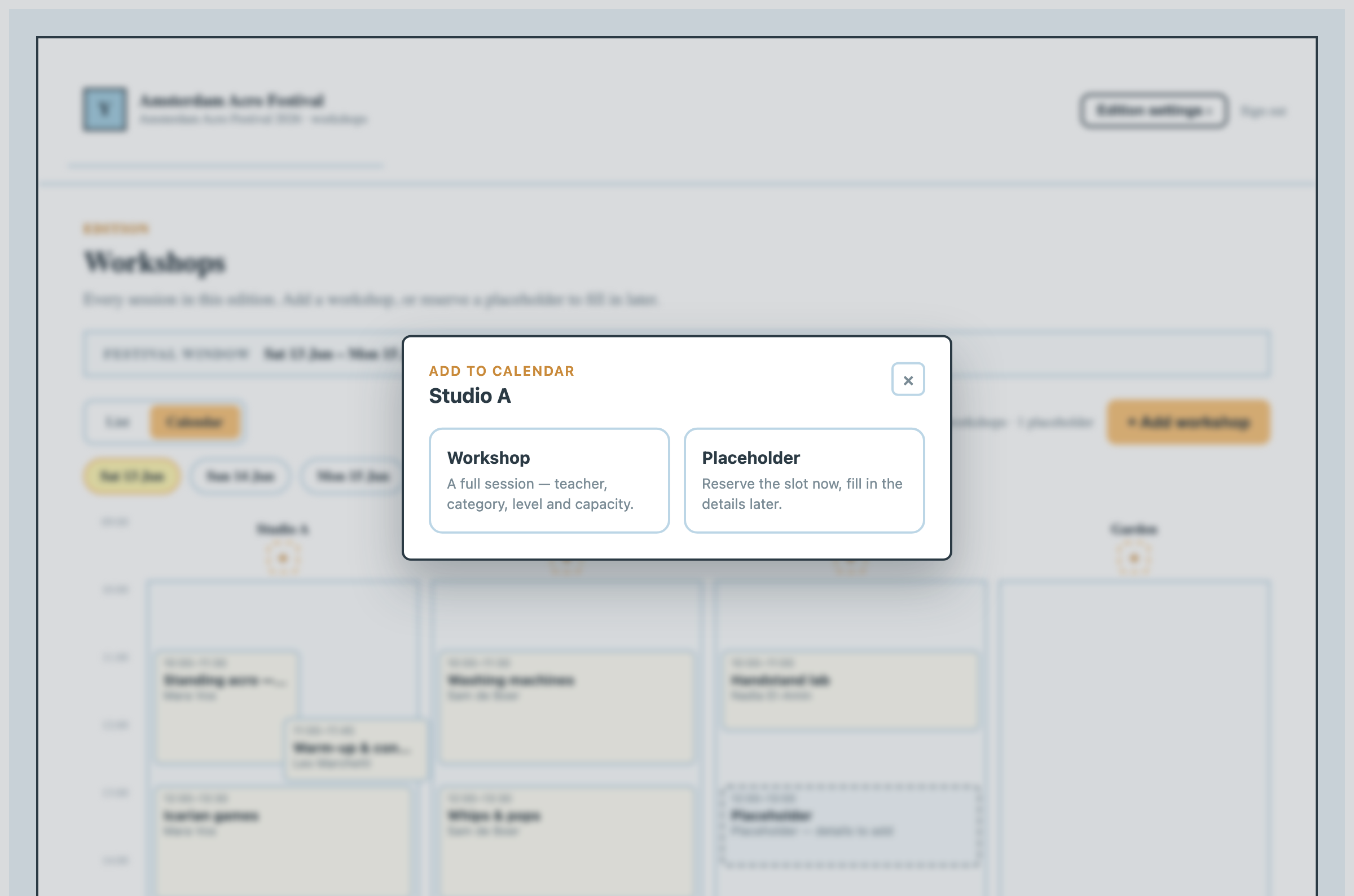
When you add something, Yuimaru first asks which of two things you're adding:
- Workshop — "A full session — teacher, category, level and capacity."
- Placeholder — "Reserve the slot now, fill in the details later."
A placeholder is simply an empty slot you're saving to fill in later — handy when you know a session belongs at a certain time but haven't confirmed the teacher yet. It shows up as a dashed box on the calendar so you can spot it at a glance.
The workshop form
Whether you're adding a new session or editing an existing one, you'll see the same simple editor. It has these fields:
- Title — the name of the session.
- Teachers — who is leading it. A session can be co-taught, so this is a list: type a name and press Add for each. You can also type an email address to invite a teacher who'll then manage their own workshop and profile — they show with a small "invite" tag until they sign in.
- Description — an optional paragraph about the session, shown on its detail page.
- Detail image — an optional picture for the session.
- Room / area — where it takes place.
- Day and Start — when it begins.
- Duration — 1 hour, 1.5 hours, or 2 hours.
- Category — the kind of session it is. Pick one, or use + Add a category… to create a new one on the spot.
- Level — All levels, Beginner, Intermediate, or Advanced (you can add your own level here too).
- Capacity — how many people can join.
- Registration required — only shown when this edition takes per-workshop registration; tick it to make attendees register for this particular session.
- I approve each registration — appears once the tick above is on. It hands the yes/no on this session's sign-ups to its teacher, who gets a Registrations queue of their own holding just this workshop's entries, and decides from the profile each person shared at sign-up. Handy for an advanced class where the teacher is the one who can judge whether someone's ready. Untick Registration required and this clears with it — it means nothing on its own.
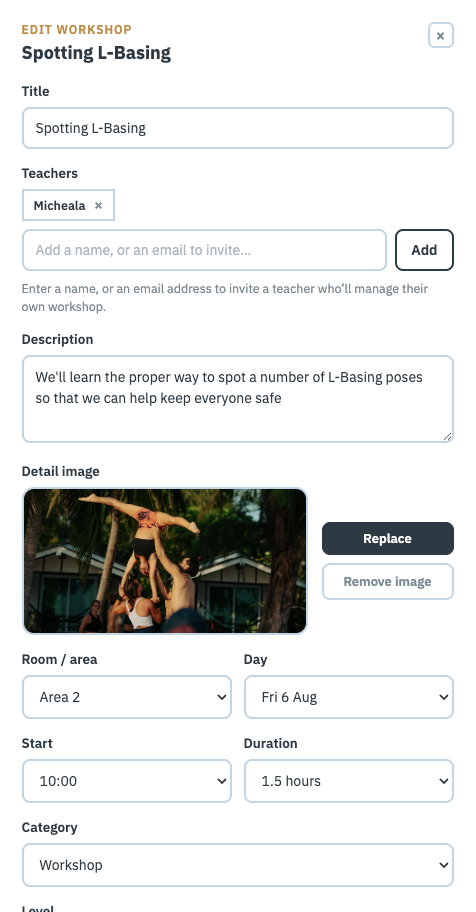
At the bottom are the buttons Delete, Cancel, and — depending on whether it's new — Add workshop or Save changes.
Adding a workshop, step by step
-
Click + Add workshop
It's in the top-right of the Workshops screen. On the calendar, you can also press the "+" at the top of a room's column to start in that room.
-
Choose "Workshop"
Pick Workshop — "A full session — teacher, category, level and capacity." (Choose Placeholder instead if you only want to hold the slot for now.)
-
Fill in the details
Give it a Title, add one or more Teachers, and set the Room / area, Day and Start time. Then pick the Duration, Category and Level, and set the Capacity — how many people can join.
A couple of the form fieldsStanding acro — the basics20 -
Click Add workshop
Your session appears in the list and on the calendar right away. You can reopen it any time to change anything, or drag it to a new time.
Saving the new session Add workshop
Changing several at once
When you've got a lot of sessions, editing them one by one is slow. Click Select to switch on selection mode, tick the sessions you want, and a small bar appears showing "N selected". From there you can set the Category, add a Tag, assign a Teacher, or Delete them — all in one go. It's the quick way to, say, tag a dozen sessions as "Beginner-friendly" without opening each one.
Common questions
What is a placeholder?
It's an empty slot you're saving to fill in later — a way to hold a time on the calendar before you've confirmed the teacher or the details. It shows as a dashed box, and you can open it and turn it into a full workshop whenever you're ready.
How do I move a session to another time?
Switch to Calendar view and drag the session block to where you want it. It snaps to 15-minute steps and stays inside your festival hours. If you change your mind, just drag it back.
What happens if I drop one session on top of another?
The two swap places. Before you let go, you'll see a small "⇄ Swap" hint so you know what will happen. Nothing is lost — the sessions simply trade times.
What does Capacity mean?
Capacity is how many people can join that session. Once it fills up, no more people can register for it. You can raise or lower the number any time by opening the workshop and editing it.
How do I add a teacher — and can a workshop have more than one?
Yes, a workshop can be co-taught. In the Teachers field, type a name and press Add for each one. If the teacher isn't on Yuimaru yet, type their email instead — they'll be emailed an invite and can then manage their own workshop and profile (the teacher guide shows them how). Remove anyone with the × next to their name.