Teacher Guide › Start here › Your invite & signing in
Step 1
Your invite & signing in
Teaching starts with an organiser adding you to their festival. This chapter covers the email that follows, the page it opens, and getting yourself an account — the one thing you need before anything else works.
How you get added
An organiser building their programme puts you down as the teacher of a workshop. They can do that in two ways, and which one they used decides what happens next:
- With your email address — Yuimaru emails you an invitation, and the workshop becomes yours to manage.
- With just your name — your name appears on the programme, but there's no account attached, so there's nothing for you to sign in to yet.
Then you were probably added by name only, or to a different address. Ask your organiser to add your email to your teacher entry — they can do that at any time, and the invitation goes out then. Nothing you've been credited with is lost in the meantime.
The invitation email
The email is titled "You're invited to [the festival]" and says you've been invited to join it as a teacher. It asks you to "Sign in with this email address to get started" and gives you a link.
Sign in with the same email address the invitation arrived at. That's how Yuimaru knows the new account is the teacher the organiser added. Sign up with a different address and you'll get a perfectly good account — just one with no workshops attached to it.
The page the link opens
The link takes you to a small welcome page in the main Yuimaru app, headed Teacher invite and "You've been invited to teach". Under it: "Create your account to manage your workshop, edit your teaching profile and connect with the community."
It also shows the address to use, under "Sign in with this email address" — so you don't have to go back to the email to check it — followed by the ordinary sign-in box.
"Maybe later" at the bottom simply drops you into the festival's public pages without signing in. Your invite doesn't expire when you do that — the link in the email still works later.
Signing in
Yuimaru has no passwords. You type your email and get a short code, or use Continue with Google, or a passkey (your phone's fingerprint or face unlock). The attendee guide walks through every option with pictures in Signing in — it's the same sign-in everywhere in Yuimaru, so it's worth reading once.
Once you're in, you land on your account page, ready for the next chapter.
The two places you'll use
Your one account opens both halves of Yuimaru. It's worth knowing which is which, because they look different:
- The main app (pink buttons) — the festival's public site. Your profile lives here, and so does everything you do as a participant. This is where your invite link landed you.
- The Back Office (amber buttons) — the organiser's console, where you'll find Your workshops. Ask your organiser for the link if you don't have it; sign in with the very same account.
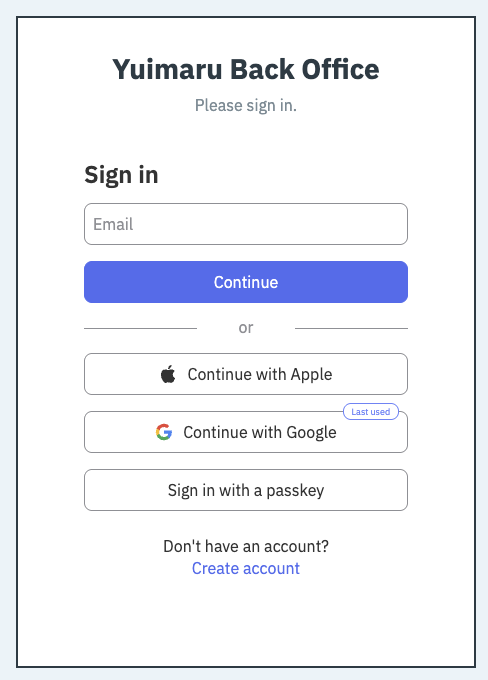
Signing in to the Back Office as a teacher works even though you have no organiser powers. You'll see your own workshops and nothing else — that's covered in chapter 3.
Common questions
I never got the invitation email
Check your spam folder first. If it's not there, ask your organiser which address they used — if they added you by name only, there's no email yet, and they can add yours to fix that.
Can I use a different email than the one invited?
You can create an account with any address, but your workshops are attached to the invited one. If you'd rather use a different address, ask the organiser to change it on their side — then sign in with the new one.
Do I need a separate password for the Back Office?
No. There are no passwords anywhere in Yuimaru, and the Back Office uses the same account and sign-in as the main app.
I signed in but I can't see any workshops
Two likely reasons: the organiser hasn't attached your account to a workshop yet, or you signed in with a different address than the invitation went to. Either way, your organiser can sort it in a moment.
Do I have to accept the invite before my name shows on the programme?
No. Your name appears on the workshop as soon as the organiser adds you and publishes the edition. Signing in is what lets you edit your own workshop and profile.