Teacher Guide › Your teaching › Your workshops
Step 3
Your workshops
This is the main screen of the Back Office that's yours. It lists the sessions you're teaching, lets you write their title and description, and lets you add a session to a festival you're already part of. Arranging the programme stays with the organiser.
Getting there
-
Open the Back Office and sign in
Same account as the main app — see chapter 1. Ask your organiser for the link if you don't have it.
-
Find "Series you teach in"
You land on "Choose a series". Below any series you might organise yourself, there's a heading "Series you teach in" with one card per festival, each labelled Your workshops.
Your card on the series picker Amsterdam Acro Festival
Your workshops › -
Open it
That takes you to Your workshops: "Edit the sessions you're teaching, or add one to an edition you're part of. Organisers handle the rest of the event."
The picker also offers + New series. That's for starting a festival of your own, which makes you its organiser — a whole different job, covered by the organiser guide. If you're here to teach, you don't need it.
What the screen shows
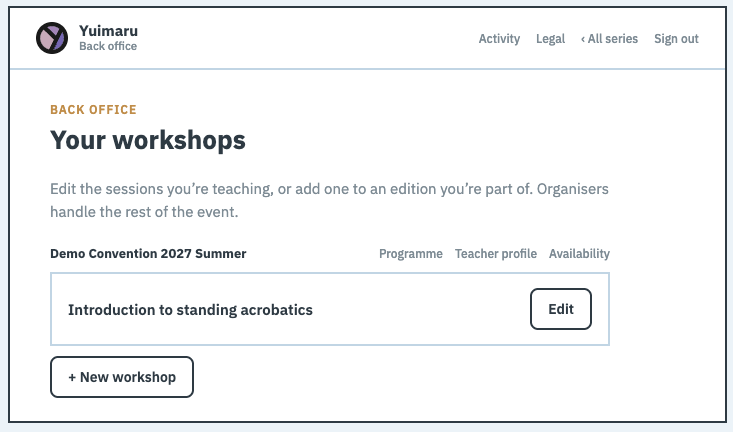
Your sessions are grouped by edition — one heading per run of the festival you're teaching in. Under each, a card per workshop with its title and the first line of its description.
Only the editions you actually teach in appear. If a festival has three editions and you teach in one, you see that one.
You'll see "You're not teaching in this series yet. An organiser will add you to a workshop." That's not an error — it just means your account isn't attached to a session yet. See chapter 1 if you think it should be.
Editing a workshop
-
Press "Edit" on the card
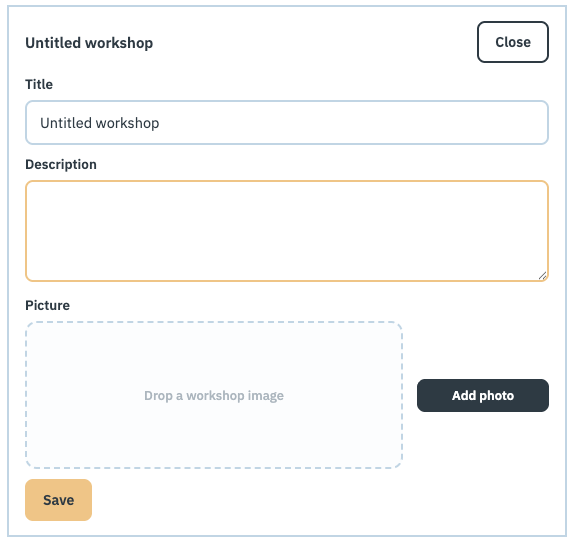
It opens up to show three fields — Title, Description and Picture. The button becomes Close if you'd rather leave it alone.
-
Write the Title
What the session is called on the timetable. It can't be empty — Save stays switched off until there's something in it.
-
Write the Description
The prose people read before deciding to come: what you'll do, who it's for, anything to bring. This is the text that shows on the workshop's details.
-
Add a Picture, if you have one
Drop an image on the box or press Add photo. It's the picture that goes with this particular session — not your own portrait, which lives on your profile. Entirely optional; a workshop with no picture looks perfectly fine.
-
Press Save
The button reads "Saving…" for a moment and the card closes. If something goes wrong you'll see "Could not save. Please try again." — your text stays in the box, so nothing is lost.
Adding a workshop
At the bottom of each edition there's + New workshop. Press it and Yuimaru creates a session called "Untitled workshop", opens it straight away for editing, and makes you its teacher. Give it a title and description, and save.
Adding a session writes down what it is — not when or where. Until an organiser places it on the calendar it won't appear on the public programme and nobody can sign up for it. Tell your organiser once you've added one, so they can put it in a slot.
You can only add to an edition you're already teaching in. Other editions — even of the same festival — aren't offered.
The other screens that are yours
Next to each edition's name on this screen sit three more links — the rest of your corner of the Back Office. They're all yours, and none of them can break anything:
- Programme — the edition's timetable, the same List and Calendar the organiser sees, so you can check what runs opposite your own session. It's read-only: everyone's sessions show, but only yours open for editing, and nothing here can be dragged to a new time.
- Teacher profile — how this festival introduces you. See chapter 2.
- Availability — the times you can't teach. See chapter 4.
Open any of those three and they move up into the bar across the top, so you can hop between them and back to Your workshops without returning here first.
Two more live in the top bar of this screen. Legal lists the data policies you accepted for each festival you teach at, and when — handy if you're ever asked what you agreed to; it's read-only, and it isn't the organiser's legal shelf. Activity is a time-ordered list of everything that has happened to your workshops — including the organiser's own changes, with their name on them. It's the screen that answers "did someone move my session?".
Vetting your own sign-ups
Sometimes an organiser wants the teacher to decide who gets in — an advanced class where you'd like to know people's background first. When they switch that on for one of your workshops, a Registrations link appears in your top bar, showing only the sign-ups for the workshops you teach.
Open a pending one and you'll see the profile that person chose to share when they signed up, with Approve and Reject right there — the decision and what it's based on, on one screen. Approving issues their ticket in the normal way.
If none of your workshops vets its own entries, the link doesn't appear at all — there'd be nothing behind it. Everything else about registrations and money stays with the organiser. And once a registration is rejected or cancelled, the profile that came with it stops being visible to you.
What you can't do here
Your slice is deliberately small. These are all the organiser's, and the Back Office won't open them for you:
- Times, days, rooms and areas — where your session sits on the calendar.
- Capacity and pricing — how many people, and what it costs.
- Categories, themes and levels — the labels on your workshop.
- Co-teachers — adding or removing who teaches with you.
- Other teachers' workshops, the venue, the people list, registrations, payments, and billing.
- Publishing the programme.
Open a Back Office link that isn't yours — a series you don't teach in, say — and you'll briefly see "You don't have access to this" with "Taking you back…", then land back on the picker. Nothing is broken and nothing was changed; that page simply isn't part of your job.
To leave, use "‹ All series" at the top to return to the picker, or "Sign out" next to it.
Common questions
Can I change when or where my workshop is?
No — the calendar belongs to the organiser, who has to fit every session into the rooms and the day. Message them with what you need and they'll move it. What you can do is mark the times you can't teach, which they'll work around: see chapter 4.
I added a workshop but it's not on the programme
Expected. A new workshop has no time or room until an organiser puts it in a slot, and the edition has to be published. Let them know it's waiting.
Can I delete a workshop I added by mistake?
Not from this screen — ask your organiser to remove it. If it helps in the meantime, retitle it clearly (for example "IGNORE — added by mistake") so nobody schedules it.
Can I see who signed up for my session?
Only if your organiser asked you to vet them. If one of your workshops is set to need the teacher's approval, a Registrations link appears in your top bar with just your own workshops' sign-ups, and you approve or reject each one from the profile the person shared. Otherwise registrations stay with the organiser — ask them for the roster or the numbers you need.
I co-teach a session — can we both edit it?
Yes. Everyone listed as a teacher of a workshop sees it under Your workshops and can edit its title and description. Just agree between you who writes the description, so you don't overwrite each other.
Why is the Back Office a different colour from the app?
So you always know which one you're in. The organiser console uses warm amber buttons; the main app people sign up in is pink. Same account, same sign-in, different job.