Guide › Going to a workshop › Sharing your schedule
Step 7
Sharing your schedule with a friend
Half the fun of a festival is going to things together. Yuimaru lets you share the workshops you've saved with another person at the same edition — and lets them share theirs with you — so you can see, at a glance, where your plans line up.
What sharing does
When you share your schedule with someone, they see the sessions you've saved with the heart laid over their own schedule, in a colour that belongs to you. That's all it does. It doesn't register either of you for anything, and it doesn't change your plan.
Your shared schedule keeps itself up to date. If you save another workshop tomorrow, it appears for the people you're sharing with. If you clear a heart, it disappears again. There's nothing to re-send.
Sharing your schedule with someone lets them see yours. It does not let you see theirs. If you'd like to see each other's plans, you each need to share — they do it from their own My schedule, exactly the same way. This is on purpose: nobody's plan is visible to anyone who wasn't deliberately given it.
Where it lives: My schedule
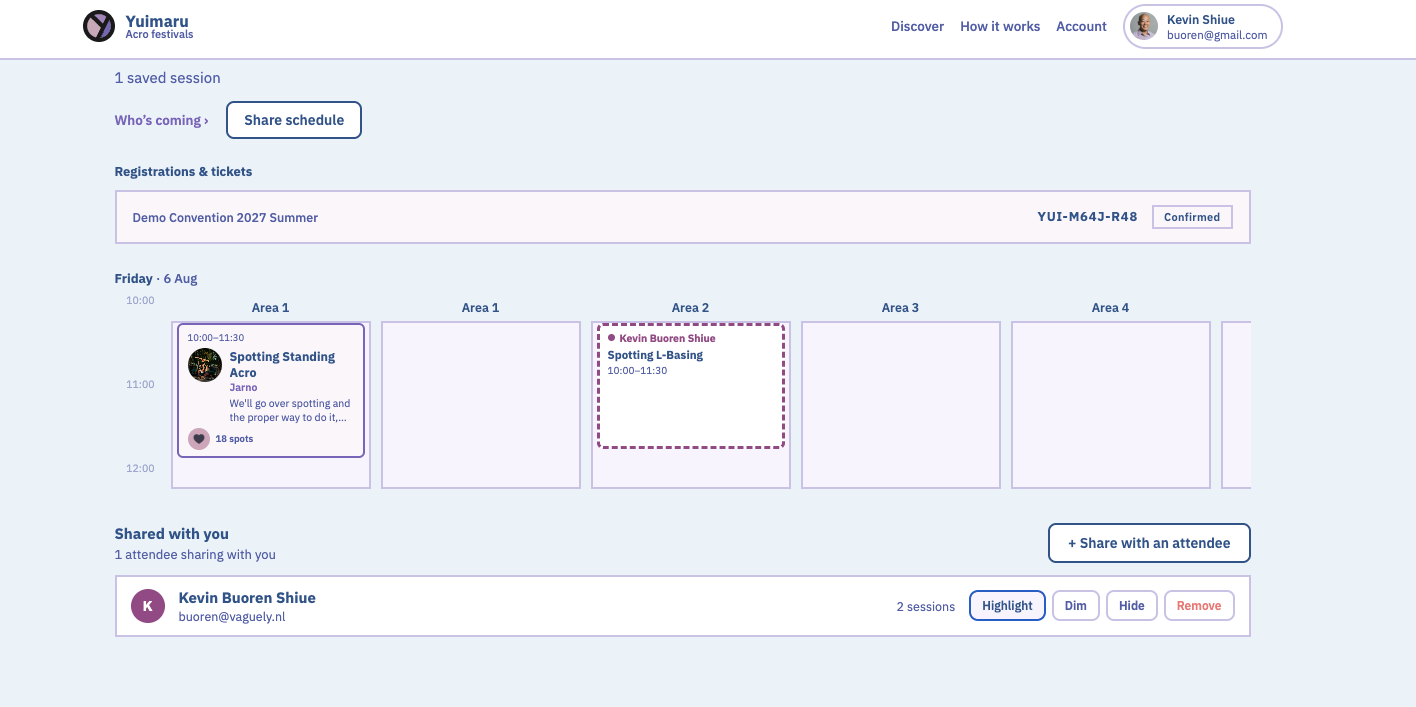
Everything to do with sharing sits on My schedule for one edition. At the top there's a Share schedule button, and below the calendar there's a panel called "Shared with you".
Sharing yours with someone
-
Open My schedule for the edition
Go to the edition you're both going to and tap My schedule.
-
Press "Share schedule"
It's at the top of the page, next to the "Who's coming ›" link. The same thing sits at the bottom as + Share with an attendee — either one opens the same little box.
-
Type their email address
Use the email they signed up with. The box reminds you: "They need to be registered for [the edition]. They'll see your saved sessions in their own schedule."
The share boxCancel Share schedulename@example.com -
Press "Share schedule" again to confirm
That's it. Their name now appears at the top of the panel under "You're sharing your schedule with", as a small chip.
Schedule sharing is for people actually coming to the edition, so both you and the person you're sharing with need a registration for it. If their email doesn't match a registered attendee, Yuimaru tells you so instead of sharing — see the messages below.
What other people's sessions look like
Sessions shared with you appear on the same timetable grid as your own, but they're easy to tell apart. Each one is drawn with a dashed outline in that person's colour, with their name across the top and a matching coloured dot. Your own saved sessions keep their normal solid look.
Everyone who shares with you gets their own colour, and that same colour is used for their little round avatar in the panel below — so once you've learned "purple is Kevin", you can read the calendar at a glance.
Shared sessions are read-only. You can see them, but you can't open, move, or heart them from there — they belong to someone else. If a session they've saved is one you've saved too, it isn't drawn twice; your own block simply stays as it is.
Their sessions can also bring in days you'd saved nothing on. If your friend has something on Sunday and you don't, Sunday appears on your calendar so you can see it.
"Shared with you" — the panel
Under the calendar, each person sharing with you gets a row: their coloured initial, their name and email, and how many sessions they've saved. The little line at the top counts them up, for example "1 attendee sharing with you", and adds "· 2 hidden from the calendar" if you've hidden any.
On the right of each row are four buttons. The first three change how that person's sessions look on your calendar — they're just for you, and the other person is never told which you picked.
- Highlight — draws their sessions with a thicker outline, so they stand out. Handy for the friend you're actually trying to meet up with.
- Dim — fades their sessions back, so they're still there but quieter.
- Hide — takes their sessions off the calendar completely. Their row stays in the panel, marked "hidden", so you can bring them back any time.
- Remove — ends the share altogether.
Highlight, Dim and Hide are toggles: press the one that's already switched on and their sessions go back to looking normal. You can change your mind as often as you like.
Hide just tidies your view — the share is still there. Remove ends the share for both of you, and only that person can start it again by sharing with you afresh. If you only want a calmer calendar, use Hide.
Stopping a share you started
The people you're sharing with are listed as chips at the top of the panel, after "You're sharing your schedule with". Each chip has a small × — press it and you stop sharing with that person. Their copy of your schedule disappears straight away, and nothing else about your plan changes.
Messages you might see
If a share can't be made, the box tells you why in plain words rather than just failing:
- "No attendee registered for this edition uses that email." — either the address has a typo, or they haven't registered for this edition yet. Check the spelling first; if it's right, they need to register (or use the address they registered with).
- "You're already sharing your schedule with them." — it's done. Their name is already in the chips at the top of the panel.
- "That's your own email address." — you can't share with yourself; your own schedule is already right there.
- "You need to be registered for this edition to share." — sharing is for people coming to the edition. Register first, then share.
Common questions
Can they see everything I've saved?
They see the sessions you've saved with the heart for that one edition — both "Interested" and "Committed" ones. They don't see your registrations, your tickets, your payments, or anything you've saved at a different festival.
If I share with them, do I automatically see their schedule?
No. Sharing goes one way. They need to share with you as well, from their own My schedule. Once they do, their name appears in your "Shared with you" panel.
What happens when I save or un-save something afterwards?
It updates by itself. The schedule the other person sees always follows your current hearts — new saves appear, cleared ones vanish. You never need to share again to keep it fresh.
Can I share with someone who isn't going to this festival?
No. Both of you need a registration for the same edition. If their email isn't a registered attendee, Yuimaru says "No attendee registered for this edition uses that email."
Does the other person know if I dim or hide them?
No. Highlight, Dim and Hide only change how their sessions are drawn on your own calendar. Nobody is told, and their schedule isn't affected in any way.
How do I stop sharing?
Press the × on their chip under "You're sharing your schedule with". To end a share coming to you, press Remove on their row instead. Either way the share ends for both of you.
Where did the extra day on my calendar come from?
From someone sharing with you. If they've saved something on a day you'd saved nothing, that day appears so their session has somewhere to sit. Hiding them takes it away again.