Organiser Guide › Set up your festival › Letting Yuimaru draft the timetable
Organiser
Letting Yuimaru draft the timetable
Once you have more than a handful of workshops, arranging them by hand gets hard — this teacher can't do Saturday morning, that room only has the crash mats, and you'd rather not run all three beginner sessions at the same hour. Yuimaru can take a first pass at it for you. It drafts; you read the draft and decide. Nothing on your programme changes until you press Apply.
The scheduler follows the shape you set. If Saturday has 09:00–10:30, 11:00–12:30 and 14:00–15:30 laid out in one room, those three times become available across every room that day. A day you haven't drawn is offered the times the rest of the festival runs at, so one good day laid out is enough to schedule the whole weekend — and if even that is missing, it falls back to 90-minute sessions from your opening time, 15 minutes apart, with 12:00–13:00 kept clear for lunch. It always prefers your hours to its own.
Where it lives
Open your edition's Workshops screen — the same one covered in chapter 4. The little toggle that used to offer two views now offers three:
- Scheduler — a calendar of a programme that doesn't exist yet. This is where you draft.
- Rules — the button next to the toggle, where you tell Yuimaru what a good timetable means at your festival.
Step one: set your rules
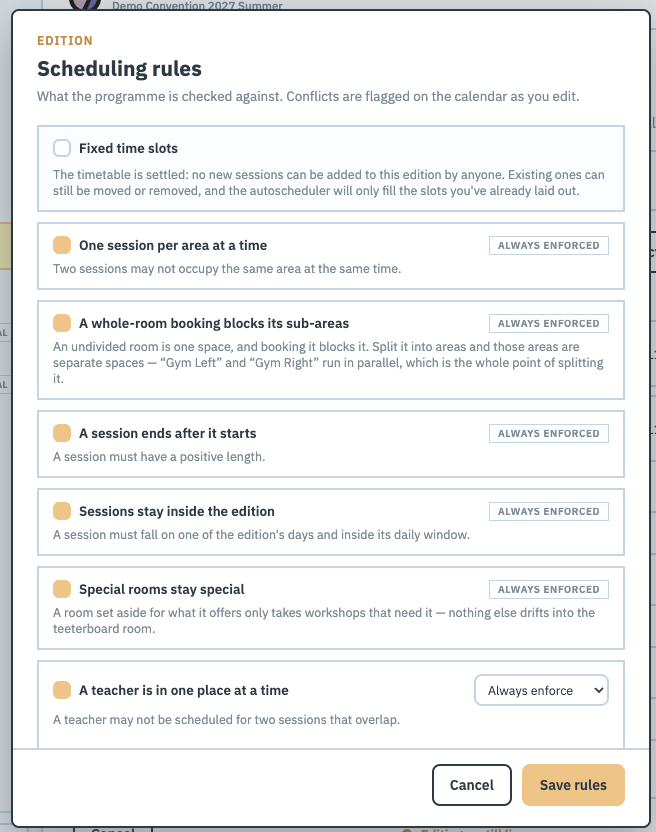
Press Rules. You'll get Scheduling rules — "What the programme is checked against. Conflicts are flagged on the calendar as you edit." It lists everything Yuimaru knows how to check, whether it's switched on or not. It's worth a slow read once: most of it you'll leave alone, but two or three will be exactly the thing you've been holding in your head.
Rules you can't switch off
A few appear greyed out with no controls. These aren't preferences, they're plain facts about a timetable, so they're marked Always enforced:
- One session per area at a time — two workshops can't occupy the same space at once.
- A whole-room booking blocks its sub-areas — a room you haven't split is one space, and booking it blocks it. The moment you add areas to a room, those areas are separate spaces: "Gym Left" and "Gym Right" run happily in parallel, and neither blocks the other.
- A session ends after it starts, and sessions stay inside the edition — inside your dates and your daily hours.
- Special rooms stay special — a room you've set aside for what it offers only takes workshops that actually need it, so nothing ordinary drifts into the teeterboard room.
Rules that are yours to set
Everything else you can switch on or off, and for each one choose how strict it is:
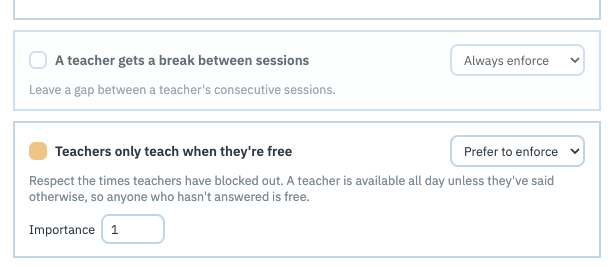
There are up to three controls on a rule, and they do different jobs:
- The tickbox is on or off. Off means Yuimaru ignores the rule entirely — it won't check it and won't optimise for it. Three rules ship off; the list below says which, and why.
- The dropdown is how hard the rule is held:
- Always enforce — a breach is a conflict. Yuimaru won't draft one, and if your current programme has one it's flagged in red on the calendar.
- Prefer to enforce — a wish. Yuimaru tries hard to honour it, tells you when it couldn't, and carries on. Nothing is broken; it just isn't ideal.
- Importance appears on preferences only, and it's how they're weighed against each other. Leave it at 1 unless one preference genuinely matters more to you than the others — raise that one, rather than lowering everything else.
Some rules add a number of their own — a minimum gap in minutes, or a maximum per day. Press Save rules when you're done; Cancel leaves everything as it was.
The full list, in plain words
About teachers
- A teacher is in one place at a time — no teacher scheduled for two overlapping sessions. On · Always enforce.
- A teacher gets a break between sessions — a gap (15 minutes by default) between someone's consecutive workshops. Off by default, because a double block is a hard no at some festivals and a happy arrangement at others. Switch it on if you're the first kind.
- Teachers only teach when they're free — respects the times teachers have blocked out (see below). On · Always enforce.
- Cap a teacher's sessions per day — warns when someone is down for more than N in a day (3 by default). On · Prefer to enforce.
- Teach when you'd rather — where a teacher said which times suit them best, prefer those, without ever ruling out the rest. On · Prefer to enforce.
- Fewer room changes — keeps a teacher in the same room across their day where it fits, so they're not carrying mats from one end of the venue to the other. Off by default — teaching in two rooms is completely normal, so as a warning it's noise; as a tiebreak it's nice to have.
About rooms
- A session gets the space it needs — a workshop's requirements (crash mats, a sprung floor) must be offered by the room it lands in. On · Always enforce. See "Telling Yuimaru what your rooms offer" below.
- A session fits its area — capacity can't exceed the room's. On · Always enforce.
- Rooms are only used when they're free — respects times a room is blocked out, like a hall you lose on the Sunday. On · Always enforce.
- Put things where they belong — nudges workshops toward, or away from, particular rooms. On · Prefer to enforce.
- Keep a theme together — holds one category in as few rooms as possible, so families (say) find everything in one place. On · Prefer to enforce.
About the shape of the programme
- Workshops run when they're meant to — respects times a workshop itself is pinned to or blocked out of. On · Always enforce.
- Spread the themes across the day and spread the levels across the day — so nobody has to choose between all of one thing at once, and there's always something for a beginner. On · Prefer to enforce.
- Repeat sessions land on different days — when a workshop runs twice, keep the repeats apart so someone who misses one can catch the other. On · Prefer to enforce.
- Spread the programme across the days — keeps the count per day even. Off by default, since a short final day is completely normal and only you know whether it's a fault.
At the top of the Rules panel there's a tickbox on its own. Tick it when your timetable is settled: no new sessions can be added to the edition by anyone, existing ones can still be moved or removed, and the scheduler will only fill the slots you've already drawn rather than adding any. A small Fixed time slots tag then shows on the Workshops screen so you can see the lock is on.
Step two: ask your teachers when they're free
A draft is only as good as what it knows. The single most useful thing you can collect is teacher availability, and Yuimaru will chase it for you.
Open the edition's People step. Each teacher's row carries a small chip showing where they stand:
- Available all week — they've said nothing that rules anything out.
- N restrictions — they've marked N times they can't do.
- Ask availability — emails that one person a link to fill it in. It's on their row because chasing one individual is the everyday act; there's a bulk version for chasing everyone left.
You can also set a deadline. It blocks nothing at all — a teacher who answers late is still answered — it just lets the chase-up email name a date instead of saying "as soon as you can".
A teacher who never answers is treated as free the whole time, not as unavailable. That's deliberate: the alternative would quietly shrink your programme every time someone didn't read their email. Teachers only ever mark the times they can't do. The People step tells you how many are still to answer, so you know how much of the picture you actually have.
Yuimaru will never email a teacher who has already answered — that's the fastest way to teach people to ignore these — and it tells you separately if someone has no email address on file, so you know to reach them another way.
Step three: tell Yuimaru what your rooms offer
Everything the scheduler places, it places into an area — not a room. A room is the physical space; the areas are the parts of it you can run a workshop in at the same time. A room you never subdivide simply has one area covering the whole thing, which is what you get automatically.
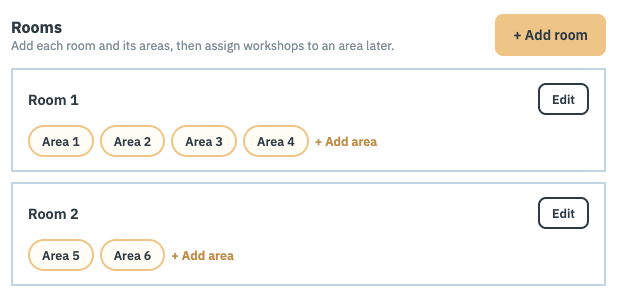
This is what the always-on rule about whole-room bookings is protecting: two areas of the same room happily run in parallel, but a session in the whole room blocks the parts, and vice versa.
Rooms also differ in what they have, and Yuimaru should know that too. This uses the Requirements list you set up in the wizard (see chapter 3) — the same short vocabulary read two ways: on a room it's something the space offers, and on a workshop it's something the session needs.
Open a room or area and use its Capabilities picker to tick what it has. It's a picker rather than a free-text box for one reason: "Crash mats, sound system" typed as prose can't be matched against anything, but a ticked Crash mats can. Areas inherit their room's capabilities, so you usually only set them once per room. Attaching one saves immediately — there's nothing to lose by closing the dialog.
Capabilities are set on rooms and areas. Marking an individual workshop as needing one isn't in the Back Office yet — so for now the practical way to keep a session in the right space is Only if needed and Manual placement only, below, plus the Put things where they belong rule.
Two settings on a space are worth knowing:
- Only if needed — the room is set aside for what it offers, and only takes workshops that need it. This is how you say "rooms 11 and 12 are for the teeterboard".
- Manual placement only — the scheduler leaves the space completely alone. Nothing is put in, nothing already there is moved. For the room you arrange by hand.
Step four: draft a programme
Switch to Scheduler. You'll see a panel headed "Let the scheduler draft it", with the line "It works within the session times you've laid out, respects the rules you've set, and writes nothing until you say so." Under it, one question: how much may it move?
-
Pick Fill the gaps
"Leave everything you've already placed exactly where it is." The safe one, and the default. Yuimaru only fills empty slots — every decision you've already made survives untouched. Start here.
-
…or Rearrange
"Move workshops around to find a better fit, keeping pinned ones put." Yuimaru may shuffle what's already placed, except anything you've pinned. Use this when the programme is roughly right but you suspect it could be tidier.
-
…or Start over
"Ignore the current layout and lay the whole programme out afresh." A clean sheet. Still nothing is live until you apply it, so this is safe to look at even if you'd never keep it.
-
Press Draft a programme
It thinks for a few seconds and shows you the result. Nothing has been written to your programme.
Redoing one day, leaving the rest alone
"Saturday is settled, redo Sunday" is a normal thing to want. On the Scheduler view, each day button in the row of days carries a small padlock. Click a padlock to lock that day: the next draft won't touch it, and everything on it stays exactly where it is.

The panel then says so in words — "Fri and Sat are locked — this run will leave them alone" — so you're never guessing what you're about to press. The padlock only ever affects a scheduler run; it doesn't stop you dragging things about on the Calendar view. Lock every day and Yuimaru tells you there's nothing to do.
Step five: read the draft
The draft appears as a calendar of ghosted blocks — the same day-and-room grid, but showing a programme that isn't real yet. Above it, a short verdict:

Each part appears only when there's something to report:
- fills N — placeholders you'd already drawn that now have a workshop in them.
- adds N — new sessions it created at times your layout established.
- moves N — already-placed workshops it would shift.
- N with nowhere to go — workshops it couldn't place at all.
Underneath, either "No conflicts." or a count of the conflicts that remain — followed, always, by "Nothing is live until you apply it." If the draft was scoped to certain days, the heading says so ("Draft · Sunday only"), because "moves 2" one press away from Apply would otherwise read as a claim about the whole weekend.
"Why does it look like this?"
That button opens the reasoning, in the rules' own words. Findings are grouped by rule, worst first, with a few real examples each and a count of the rest — because on a real edition one rule might produce a single line worth acting on while another produces forty, and a flat list buries the useful one.
- Bordered in red — a conflict. Something you said to never allow is still broken. Worth fixing.
- Plain — a preference it couldn't fully satisfy, with what it cost. Not broken, just not ideal.
If there are no red ones at all, Yuimaru says so plainly: "No conflicts — everything below is a preference the scheduler couldn't fully satisfy, not something broken."
When some of it wouldn't fit
A draft that places everything is the happy case; on a real edition it's normal for the first few runs to leave some workshops homeless. Yuimaru says so twice — once as a count in the summary line, and once as a sentence telling you what to do about it.
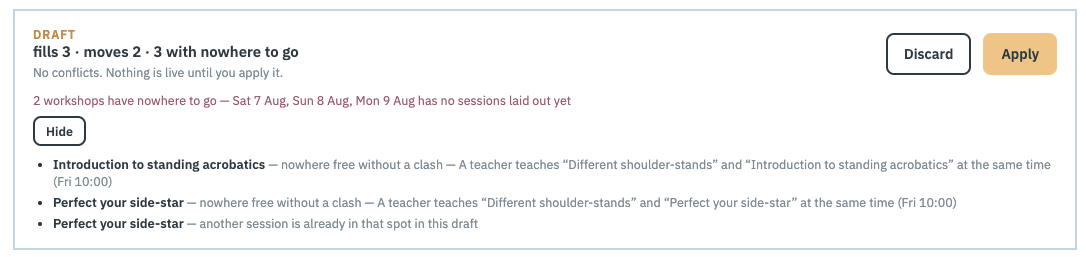
The highlighted sentence names the likeliest cause, and it's usually the one worth acting on first. Drawing the days out yourself (Repeat layout… on the Calendar view does it in one press) gives the scheduler more to work with than it can safely assume, and is worth doing before drafting again.
Press Show the N that didn't fit and each workshop is listed by name with its own reason — no room with the right kit, no time the teacher is free, nowhere left at that capacity, or simply that another session had already taken the only spot that suited it. That list is the most actionable thing on the screen: it tells you precisely which constraint to relax. Press Hide to fold it away again.
A workshop that runs more than once is more than one thing to place, so a session that repeats on Saturday and Sunday can turn up twice in the list — once per run, each with its own reason. It isn't a duplicate.
A scoped run says which day it was about, so a shortfall on a Sunday-only run never reads as a verdict on the whole edition.
Step six: apply it, or throw it away
- Discard — forget the draft. Your programme was never touched.
- Apply — the draft becomes your programme.
Applying doesn't disturb anything anyone has already saved or paid for: saved schedules, shares and registrations all name the workshop, not the slot, so a session keeps its people wherever the programme puts it. If applying takes a workshop off the programme entirely, that's the one thing worth telling those people about yourself.
Drafting is free and changes nothing, so try all three modes and see what each gives you. Applying is the real move: it replaces the current arrangement. If your programme is already published, treat it the way you'd treat any other change to a live timetable.
Common questions
I pressed "Draft a programme" and nothing was placed.
Check whether the edition has any areas — workshops attach to an area, so a venue with no rooms set up has nowhere to put anything. Check too that Fixed time slots isn't on: that stops the scheduler adding sessions at all, so with nothing drawn there is nothing for it to fill. Otherwise the "didn't fit" list gives each workshop its own reason.
Will it move workshops I've already arranged?
Only if you ask it to. Fill the gaps — the default — leaves every placed workshop exactly where it is. Rearrange may move things but respects anything you've pinned. Start over ignores the current layout entirely. And whichever you pick, nothing changes until you press Apply.
A teacher hasn't filled in their availability. Is that a problem?
No — they'll simply be treated as free the whole time. Teachers only mark the times they can't do, so silence never shrinks your programme. Use Ask availability on their row to send a reminder; Yuimaru skips anyone who has already answered.
What's the difference between a conflict and a preference?
You decide, per rule. Always enforce makes a breach a conflict — flagged in red, and the scheduler won't draft one. Prefer to enforce makes it a wish — honoured where possible, reported where not, and never a reason to leave a workshop unplaced.
Can I redo just one day?
Yes. On the Scheduler view, click the padlock on every day you want left alone, then draft. Locked days keep exactly the programme they have, and the draft summary says which days it covered.
Why won't it use my big hall?
Two likely reasons. If the hall is marked Only if needed, it only takes workshops that need what it offers. If it's marked Manual placement only, the scheduler doesn't touch it at all. Both are settings on the room or area itself.
Do I have to use it?
Not remotely. The List and Calendar views work exactly as before, and plenty of festivals are arranged entirely by hand. Even if you never draft anything, setting your rules is worth it on its own — they're what puts the red conflict badges on the calendar.